Before you start
You’ll need the download containing your Canva template link, a Canva account, your event details and any photos you want to use. These instructions cover the editable website templates and features shown in the videos; the layout and included features can vary by design.
1. Personalize your invitation in Canva
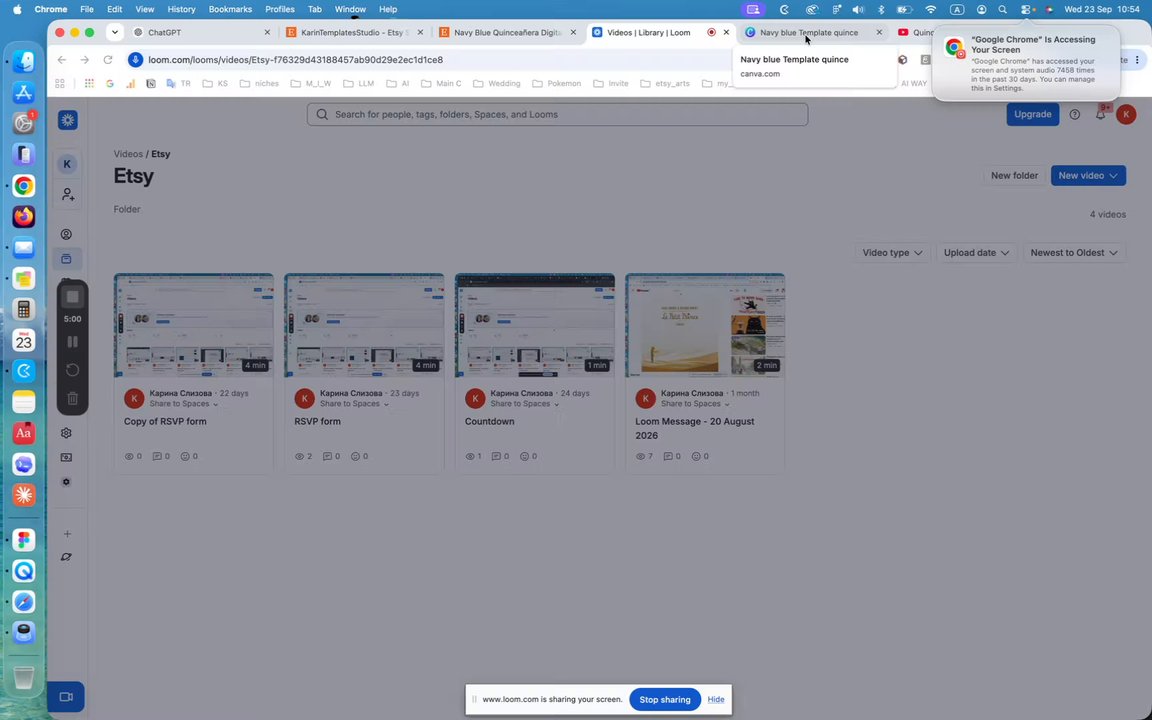
- Open the PDF supplied with your purchase and follow its Canva template link. Choose the option to edit or use the template, then sign in or create your account.
- Click the editable text and replace it with the celebrant’s name, date and celebration details. Add the dress code, schedule and any special requests for your guests.
- Open Uploads and upload your photo. Drag it into the existing image frame. Double-click the image to adjust the crop and keep faces visible.
- Check each page for sample names, dates and addresses. Keep the existing navigation and decorative elements in place unless you intend to change their function.
2. Update the countdown and event links
- If your template includes a countdown, select it and choose Edit. Set your event date, check the available date and time fields, then choose Update countdown or the update control shown in your design.
- Wait for the countdown to refresh, then check its position. Center it horizontally and vertically in the intended space.
- Where available, adjust the countdown colors and labels to suit your invitation. The Quinceañera walkthrough also demonstrates changing the labels into Spanish.
- Update the venue address and any map link. If a button shape and its text are separate elements, give both the same destination link so either part works when clicked.
If your design includes a music element, the first Quinceañera video demonstrates replacing its linked video. Check playback on the published invitation; browser settings can affect whether embedded music plays.
3. Set up online RSVP and Canva Sheets
- Select the native Canva RSVP form and open Edit. Review its existing questions and answer choices.
- Choose the information you need, such as guest name, attendance and number of guests. Add a question only when you need the answer.
- Use the form settings to personalize the title and button text. If adding questions makes the form taller, adjust the surrounding spacing.
- Open Responses and enable collection if Canva prompts you to do so. Publish the website, open its live link and submit a test response.
- Return to the form’s Responses tab. Use the option to view or link responses in a Canva Sheet. You can then open the invitation design and the response sheet separately in your Canva account.
4. Publish, check and share your invitation website
- Use Canva’s website publishing controls and choose the available Canva website address. Review the address and settings before publishing.
- Where available, set the social media preview so your invitation has a preview image when shared in a messaging app.
- Open the published link on your phone. Check the text, photo crops, countdown, buttons and RSVP form. Test the whole journey as a guest.
- Copy the published website link and share it by text, email or your preferred messenger. Send the guest-facing website link rather than your Canva editing link.
- After later changes, publish again so guests can see the update. If an old version remains visible, try opening the published link in a private or incognito window.
A few helpful answers
Do I need Canva Pro?
The demonstrated setup works with a free Canva account. Your own uploads and free elements keep the editing process within that setup; premium additions may have different requirements.
Where do my RSVP answers go?
For the native Canva form shown here, open Responses in the form editor and link or view the answers in Canva Sheets. If you replace it with Google Forms, review the replies there instead.
Why are my edits missing from the live invitation?
Publish the website again after editing. Then open the published link in a private window to check whether an older version was cached.
Can I use these steps for another design?
Use the steps for matching features in your template. Layouts, countdowns and RSVP tools may vary, so follow the guide included with your purchase for design-specific details.
Find your quinceañera invitation.
Explore the collection ↗Need help with your template? Contact Karina on Etsy ↗